How to Install a Starlink Mesh Router for Whole-Home Wi-Fi
By InstallPros Team · July 15, 2026 · 3 min read
To install a Starlink Mesh Router, you will generally connect it wirelessly to your existing Starlink router, extending your Wi-Fi signal to cover a larger area in your home. This process involves ensuring your current Starlink router has mesh capabilities enabled, positioning the new mesh router strategically, and then following the simple pairing instructions within the Starlink app.
Understanding Your Starlink Wi-Fi System
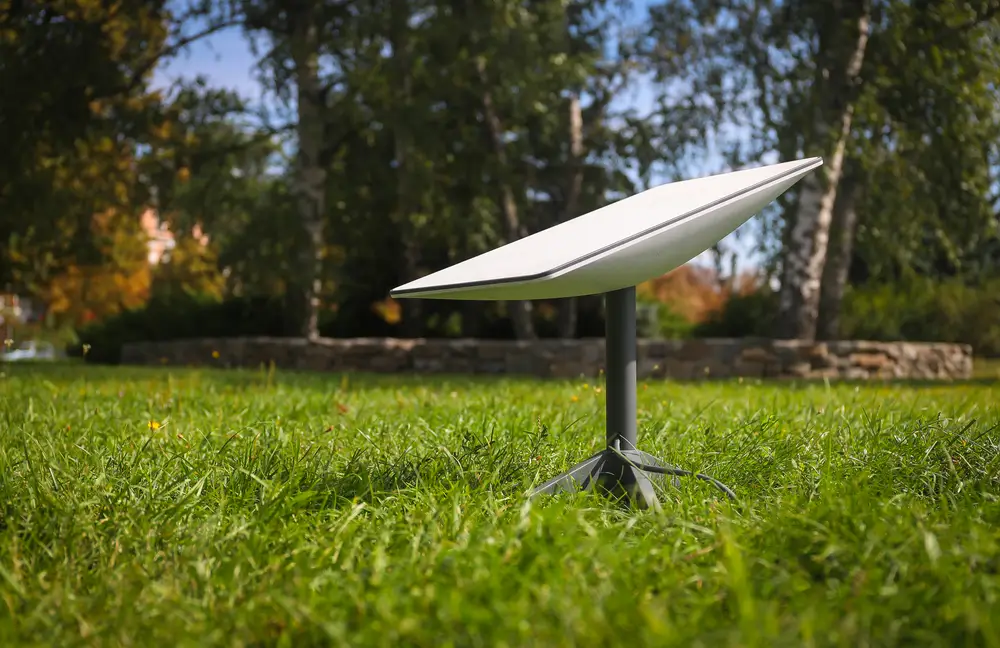
Before you dive into the installation of a new mesh router, it's helpful to understand how your current Starlink Wi-Fi system works. Your original Starlink kit includes a dish (Dishy), a power supply, and a main router. This main router creates your primary Wi-Fi network. While powerful, its signal might not reach every corner of a large home or a home with dense walls. This is where a mesh router comes in. A mesh router works by creating a unified network with your main router, expanding the coverage without creating separate Wi-Fi networks that you need to switch between.
Starlink offers its own mesh routers designed to seamlessly integrate with your existing system. These are not third-party devices; they are specifically made to work with Starlink hardware. Always check that your main Starlink router has the latest firmware updates, as this ensures compatibility and optimal performance with any new mesh nodes you add.
Gathering Your Tools and Planning Placement
Installing a Starlink mesh router is largely a software-driven process, but a few things will make it easier. You won't need many tools, but having your smartphone or tablet with the Starlink app installed and updated is essential. You'll also need access to your existing Starlink router and a power outlet for your new mesh unit.
The most important part of planning is deciding where to place your new mesh router. The goal is to extend your Wi-Fi signal, so pick a central location between your main Starlink router and the area you want to improve coverage in. Avoid placing it:
- In enclosed spaces like cabinets or closets.
- Near large metal objects or appliances that can interfere with the signal (microwaves, refrigerators).
- In direct sunlight or extreme temperatures.
Frequently Asked Questions
Can I use any mesh router with Starlink?
No, you should use Starlink's own mesh routers. These are specifically designed to work seamlessly with your existing Starlink hardware and integrate directly into the Starlink app. Third-party mesh systems are not officially supported and may not provide the same level of performance or integration.
How many Starlink mesh routers can I have?
Starlink allows you to connect multiple mesh routers to expand your Wi-Fi network as needed. The exact number will depend on the size and layout of your home, but the system is designed to be scalable to provide comprehensive coverage. Start with one, and add more if you still find dead spots.
Where is the best place to put Starlink mesh?
The best place to put a Starlink mesh router is roughly halfway between your main Starlink router and the area you want to extend coverage to. Ensure it's in an open space, away from obstructions like large metal objects or thick walls, and within line of sight of the primary router for optimal signal transmission.
How do I connect my Starlink mesh router?
You connect your Starlink Mesh Router wirelessly using the Starlink app. First, plug in the mesh router to power. Then, open the app, navigate to the settings, and select 'Set Up a Mesh Router.' Follow the on-screen prompts to pair the new router with your existing Starlink system. The app will guide you through each step.
Does Starlink have Wi-Fi 6 mesh?
The core Starlink router and its mesh extensions support modern Wi-Fi standards to deliver high-speed connectivity. Specific Wi-Fi generation support, such as Wi-Fi 6, depends on the router model you have. Starlink continuously updates its hardware and firmware, so it's always best to check the specifications of your specific router or within the Starlink app for the most current information regarding Wi-Fi standards.