Enhancing Your Smart Home with Starlink and Sonos One (Gen 2): Detailed Features, Specs, and Pricing
April 30, 2024 · 2 min read
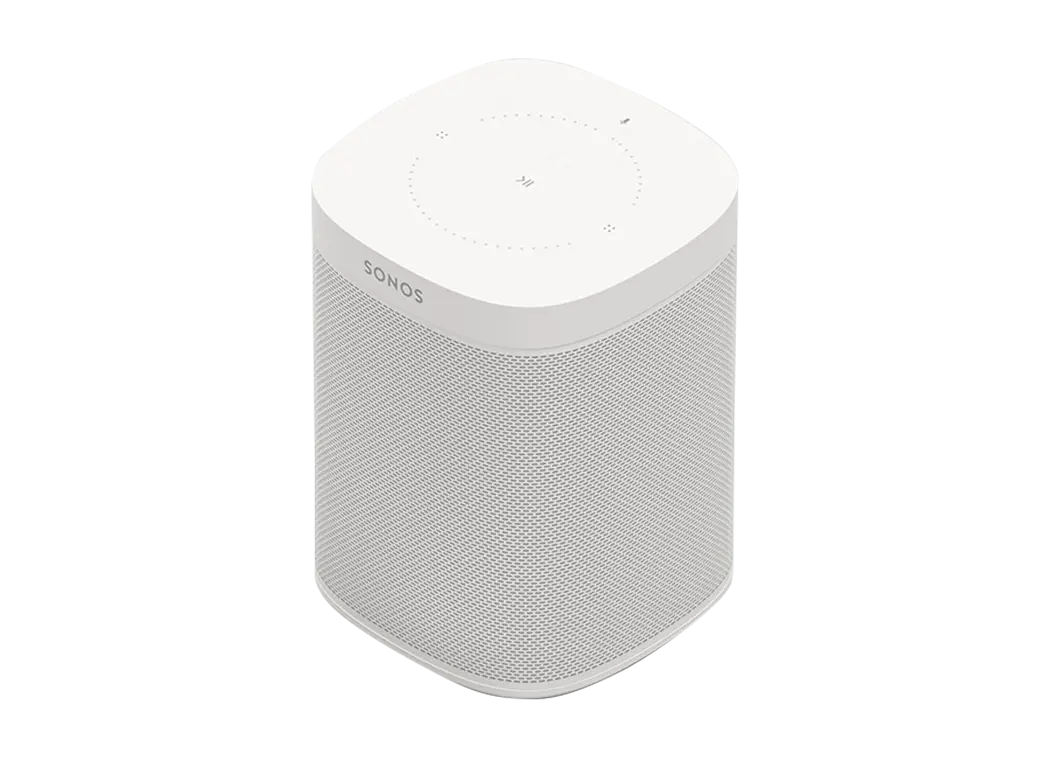
Overview: Enhancing Your Smart Home with Starlink and Sonos One (Gen 2)
Combining Starlink's high-speed satellite internet with the Sonos One (Gen 2) creates a powerful foundation for a modern smart home. The Sonos One (Gen 2) delivers rich, room-filling audio, built-in voice assistants, and multi-room capabilities. When those features run over a reliable Starlink connection, you get low latency, fast streaming, and seamless updates. This guide expands on specifications and features and adds a comprehensive audio setup walkthrough, multi-room configuration best practices, and the Starlink bandwidth requirements you need for stable, high-quality streaming.
Detailed Specifications of the Sonos One (Gen 2)
The Sonos One (Gen 2) is a compact, high-performance smart speaker designed for versatility and integration into multi-room audio systems. Key specifications and physical attributes include:
- Dimensions (H x W x D): 161.45 mm x 119.7 mm x 119.7 mm
- Weight: 1.76 kg
- Colors: Black, White
- Finish: Matte
Core hardware and user-facing elements:
- Amplification: Two Class-D digital amplifiers tuned to Sonos’ acoustic architecture for balanced bass and clear midrange.
- Controls: Touch-sensitive top panel for play/pause, skip, volume adjustments, and microphone mute.
- LED Indicators: Multi-state LEDs for connection status, mic mute, and voice activation feedback.
- Voice Assistants: Integrated support for Amazon Alexa and Google Assistant (configurable in Sonos S2 app).
- Connectivity: Wi‑Fi (preferred for Sonos One) to connect to your home network—no Bluetooth streaming for full Sonos feature set.
- Software: Sonos S2 app support and ongoing firmware/software updates for new features and security.
Core Features and Integration Benefits
The Sonos One (Gen 2) is built for flexible placement, voice control, and multi-room audio. Highlights you’ll leverage when paired with Starlink:
- Superior audio quality: Despite its small footprint, the speaker delivers detailed sound suitable for music, podcasts, and smart home voice responses.
- Built-in voice control: Use Alexa or Google Assistant to control playback, smart home devices, and to query information without needing a separate smart hub.
- Seamless multi-room audio: Group Sonos speakers for synchronized playback across rooms or play independent sources in different zones.
- High-quality streaming over Wi-Fi: Sonos leverages your home network—Starlink’s bandwidth and low latency complement Sonos by reducing buffering and improving responsiveness.
Complete Audio Setup Guide (Step-by-step)
This section explains how to unpack, place, configure, and optimize Sonos One (Gen 2) speakers for the best possible sound and smart home integration on a Starlink-powered network.
1. Planning placement
Place the Sonos One on a stable surface 3–4 feet above the floor (countertops, nightstands, shelving). Avoid tight corners or enclosed cabinets where bass can become boomy. Keep at least 6–12 inches from walls for cleaner imaging. For stereo pairs, position speakers 6–10 feet apart facing the listening area, forming an equilateral triangle with the primary listening position.
2. Physical setup
1) Plug in the Sonos One and power it on. 2) Install the Sonos S2 app on your phone or tablet. 3) Follow the app prompts to add the speaker to your Sonos system. 4) If you have multiple Sonos units, add them sequentially and name each by room for clear grouping.
3. Trueplay tuning
Use Sonos Trueplay to tune each speaker to room acoustics. Trueplay tuning is currently optimized for iOS devices—open Trueplay in the Sonos app and follow the guided microphone sweep. This calibration improves frequency balance and spatial performance.
4. Creating stereo pairs and surrounds
To form a stereo pair, select two identical Sonos Ones in the S2 app and assign left/right channels—this dramatically widens the soundstage and improves bass. Sonos One units can also act as rear surrounds when paired with a Sonos Arc or Beam for home theater setups; configure this in the app’s room settings.
5. Integrating voice assistants
Enable Alexa or Google Assistant in the Sonos app, sign in to your voice account, and configure privacy settings (microphone mute, voice history) as needed. Remember you can mute the mic physically for privacy. For best voice performance, place Sonos Ones in open spaces away from competing noise sources like kitchen exhaust fans.
6. Advanced wiring and backhaul
For dense multi-room systems or environments with heavy Wi-Fi interference, use Ethernet backhaul where possible. Sonos devices that support Ethernet can be hardwired to switches connected to your Starlink router, creating a stable Sonos mesh. If your Wi-Fi is congested, consider a Sonos Boost to create a dedicated Sonos radio network that isolates Sonos traffic from general Wi-Fi.
Multi-Room Configuration Best Practices
Sonos excels at multi-room audio when devices share the same LAN and SSDI. Use these best practices to keep groups synchronized and responsive:
- Single SSID: Ensure all Sonos devices and controller devices are on the sameSSID and subnet. Sonos relies on mDNS/UPnP for discovery; multiple SSIDs or VLANs can break discovery unless configured for multicast routing.
- Disable AP/client isolation: Ensure your Starlink or downstream Wi-Fi access points don’t isolate clients—this prevents Sonos devices and the controller app from communicating.
- Ethernet backhaul: Hardwire speakers or use wired access points to reduce latency and packet loss for flawless sync between rooms.
- Group management: Use logical room names and group sets in the S2 app to streamline multi-room control (e.g., Kitchen, Living Room, Patio).
- Prioritize network traffic: If your router supports QoS, prioritize Sonos devices or streaming ports to reduce dropouts during peak bandwidth usage.
Starlink Bandwidth Requirements for Streaming Audio
Understanding bandwidth usage helps you provision Starlink service appropriately for your household or facility. Audio streaming is generally light compared to video, but quality and quantity matter.
Typical per-stream bandwidth estimates
- Standard quality (Spotify/Amazon Music default): 96–160 kbps (~0.1–0.2 Mbps)
- High quality (Spotify/Apple Music at max AAC/MP3): 256–320 kbps (~0.3 Mbps)
- Lossless/CD-quality (FLAC/Apple Lossless): ~1.4 Mbps for 16-bit/44.1 kHz stereo
- High-resolution lossless (24-bit hires): 2–8 Mbps depending on sample rate and compression
Practical rule-of-thumb: allocate 0.5–1 Mbps per typical high-quality stream and 3–5 Mbps per high-resolution stream to allow headroom for network overhead and other devices.
How many simultaneous Sonos streams can Starlink handle?
Starlink residential plans commonly deliver 50–250+ Mbps downstream and 10–20+ Mbps upstream (speeds vary by plan and location). At 100 Mbps downstream, you could theoretically handle dozens of standard/high-quality streams or several dozen high-res streams concurrently. For business-critical deployments or remote sites requiring guaranteed throughput, consider Starlink Business or Enterprise offerings which provide higher sustained data rates.
Latency and responsiveness
Starlink’s latency typically ranges from ~20–50 ms—far better than most traditional satellite services. That latency is more than sufficient for audio playback and voice assistant responsiveness. For multi-room synchronization, low jitter and packet loss are more important than raw bandwidth—optimize your local Wi-Fi and wiring to minimize these.
Network Best Practices with Starlink and Sonos
To maximize reliability and audio quality:
- Use the Starlink router as your primary gateway but consider deploying a managed router or QoS-enabled firewall downstream for finer traffic control.
- Hardwire where possible: Ethernet backhaul reduces Wi-Fi contention and is recommended for systems with more than 4–6 Sonos units.
- Use high-quality Wi-Fi access points: If you need Wi-Fi coverage for Sonos, use dual-band or tri-band APs with good coverage and low client density per AP.
- Allow mDNS/UPnP multicast: Sonos discovery requires multicast; ensure it’s enabled across your LAN or use a single broadcast domain.
- Reserve bandwidth for streaming: Use QoS to prioritize Sonos devices during peak usage, especially when concurrent video conferencing or 4K streaming is happening.
Pricing and Value
The Sonos One (Gen 2) typically retails around $219. That price reflects Sonos’ build quality, longevity, and integration capabilities. When deployed as part of a multi-room Sonos system over Starlink, the investment is not just a single-speaker cost but a scalable audio ecosystem that retains resale value and supports software improvements for years.
Optimized Experience with Starlink
Integrating Starlink makes Sonos setup faster and more reliable for the following reasons:
- High sustained throughput: Fast downloads for music and firmware updates reduce setup time and keep the system current.
- Low latency: Voice assistant responsiveness and multi-room synchronization improve with lower network delays.
- Stable connectivity in remote locations: Starlink enables high-quality audio streaming in rural and remote sites where terrestrial broadband is unavailable.
Why Choose InstallPros?
InstallPros.io is the #1 Starlink installer in the USA and a trusted partner for homeowners and enterprises integrating Starlink with smart home audio systems like Sonos. Our services include residential, enterprise, fleet, and remote site installations. We offer professional network design, on-site Sonos configuration, and Starlink hardware mounting and commissioning to ensure optimal performance. Need it fast? We provide same-week scheduling in most regions so your smart home upgrade happens without delay. From single-room setups to large-scale multi-site deployments, InstallPros has the experience and field teams to deliver a turnkey solution tailored to your needs.
FAQ
Do Sonos speakers work with Starlink out of the box?
Yes. Sonos speakers work with Starlink the same way they work with other broadband connections. Ensure all Sonos devices and the controlling phone/tablet are on the same Starlink network and that client isolation is disabled. For complex networks, an InstallPros technician can verify multicast routing and QoS to prevent discovery issues.
How much Starlink bandwidth do I need for a multi-room Sonos setup?
For casual listening and multiple standard-quality streams, a basic Starlink residential plan (50–150 Mbps typical) is sufficient. If you stream lossless or high-resolution audio across multiple rooms, or you run heavy video/VoIP traffic at the same time, consider a higher-tier plan or Starlink Business for more consistent throughput. Plan for 0.5–1 Mbps per standard HD audio stream and 3–5 Mbps per high-resolution stream to ensure headroom.
Should I use Ethernet backhaul or Sonos Boost with Starlink?
Ethernet backhaul is the most reliable option and is recommended when possible. If wiring is impractical, Sonos Boost can create a dedicated Sonos wireless network to reduce interference. In many cases, a combination—hardwiring critical zones and using Boost or robust APs for others—provides the best balance.
Can I use Sonos One (Gen 2) as part of a home theater surround setup?
Yes. Sonos One (Gen 2) can function as rear surrounds when paired with a Sonos Arc, Beam, or Amp. Configure the surround setup in the Sonos S2 app and run Trueplay tuning for best integration with your TV and room acoustics.
What should I do if I experience dropouts or sync issues?
Start by checking Wi-Fi signal strength, disabling AP isolation, and ensuring all devices are on the same SSID/subnet. Rebooting the Starlink router and your Sonos devices can clear transient issues. If problems persist, move to Ethernet backhaul for key devices or contact InstallPros for an in-home network assessment and advanced optimization.