Starlink and Home Automation: Enhancing Connectivity with Ring Chime Pro
May 3, 2024 · 3 min read
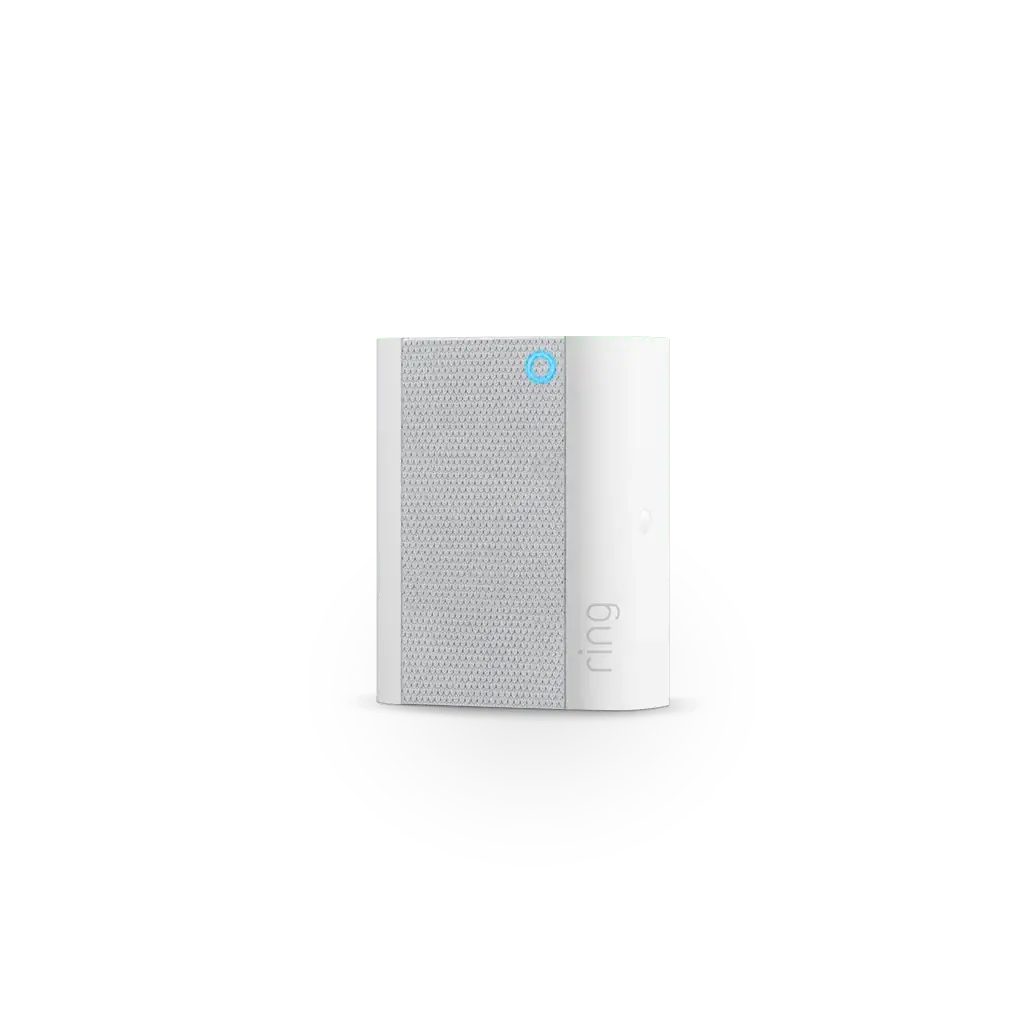
Combining Starlink satellite internet with Ring's ecosystem can significantly improve home security responsiveness and expand coverage for smart devices. The Ring Chime Pro, a compact plug-in device that provides audible alerts and acts as a Wi‑Fi extender for Ring gear, pairs well with Starlink's high-throughput, low-latency connection. This guide provides a full product review of the Ring Chime Pro, explains Starlink bandwidth and latency considerations for Ring devices, gives a step-by-step setup guide for integrating Chime Pro with Starlink, covers compatibility and troubleshooting notes, and finishes with a professional installation CTA from InstallPros.io.
Overview of Ring Chime Pro
Compact and Functional Design
The Ring Chime Pro features a small footprint (103 mm x 69 mm x 29 mm) and a neutral white finish that fits unobtrusively into most homes. It functions both as an audible chime for Ring doorbells and cameras and as a local Wi‑Fi extender/bridge to improve connectivity for Ring devices located at the edges of your Wi‑Fi coverage.
Key Features
- Audible Chime: Plays custom notification sounds when your Ring device detects motion or doorbell presses. Volume is adjustable in the Ring app.
- Wi‑Fi Extender / Bridge: Extends 2.4 GHz and 5 GHz Wi‑Fi coverage specifically for Ring devices, helping maintain reliable live-view and recordings.
- Dual‑Band Support: Works with 802.11 a/b/g/n/ac on 2.4 GHz and 5 GHz bands for flexible network placement.
- Easy Power: Plugs into standard outlets with region-specific adapters available.
- App Control: Setup and settings are managed through the Ring app (sound selection, volume, device association).
Pros and Cons — Practical Review
- Pros: Simple setup, local audible alerts for visitors and alerts, improves connection for Ring devices, affordable (usually $50–$60), integrates seamlessly with Ring/Alexa.
- Cons: Not a replacement for a whole-home mesh Wi‑Fi system, limited control over advanced networking features, no battery backup (won’t chime during a power outage), and visibility to some advanced network admins is limited because Ring uses cloud connections.
How Starlink Enhances Ring Chime Pro Performance
Starlink Bandwidth and Latency Requirements
Starlink offers significantly higher downstream and upstream speeds than many rural or DSL options, and its latency is low enough to support real‑time security feeds. Typical residential Starlink performance (as of mid‑2024) ranges from roughly 50–220 Mbps down and 10–40 Mbps up, with latency commonly in the 20–50 ms range. These figures vary by location, network load, and Starlink hardware generation.
Ring devices themselves do not require massive bandwidth per unit. Ring recommends a minimum of 2 Mbps upload per device for reliable performance, and many 1080p live-streams will use between 1.5–4 Mbps upload depending on motion and video quality. For a typical household with multiple Ring cameras and frequent live view sessions, plan on 3–5 Mbps upload per active device as a safe guideline. With Starlink residential plans commonly offering 10–40 Mbps upload, the network is more than capable of handling multiple Ring devices simultaneously in most homes.
Why Low Latency Matters
Low latency improves response time for live view, two‑way audio, push notifications, and event uploads. Starlink’s latency profile (20–50 ms) is comparable to many terrestrial broadband services and is typically more than adequate for Ring's cloud-based services. Note that unusually high latency or packet loss can cause delayed notifications or failed video uploads.
Network Considerations with Starlink
- Outbound Connections: Ring devices use outbound connections to Ring’s cloud servers, which generally work fine over Starlink’s shared NAT environment.
- Inbound Ports: If you rely on inbound port forwarding for custom integrations, know that Starlink residential customers often sit behind carrier-grade NAT (CGNAT), which prevents straightforward inbound port forwarding. For advanced use cases (VPNs, static IPs), consider Starlink Business/Enterprise or a VPN solution.
- Router Choices: The Starlink Wi‑Fi router is sufficient for most installs, but power users will prefer to connect a third‑party router or mesh system (using Starlink’s bypass/bridge options or an Ethernet adapter) to manage advanced routing, VLANs, or mesh coverage for large homes.
Step-by-Step: Installing Ring Chime Pro with Starlink
Below is a practical setup workflow for homeowners who want Ring Chime Pro working reliably on a Starlink connection. This covers both simple plug-and-play scenarios and setups where a third‑party router or mesh system is in use.
Preparation
- Ensure your Starlink terminal and router are installed, online, and providing Wi‑Fi.
- Install the latest Ring app on your mobile device and sign in to your Ring account.
- Decide whether you’ll use the Starlink router’s Wi‑Fi or your own router/mesh network. If using your own, plan the physical connection: use the Starlink Ethernet adapter or enable bypass/bridge mode if available.
Simple Setup (Starlink Router + Chime Pro)
- Plug the Ring Chime Pro into a central outlet within range of both the Starlink Wi‑Fi and the Ring device(s) you need to support.
- Open the Ring app, tap Devices → select your Chime Pro or Add Device → Chime Pro, and follow the in‑app instructions to connect the Chime Pro to your Starlink Wi‑Fi network.
- When prompted, select the network band. For best compatibility with Ring cameras and doorbells, ensure the 2.4 GHz network is enabled and visible; the Chime Pro can bridge devices to a stronger connection.
- Associate Chime Pro with specific Ring devices in the app so it plays chimes for those devices and helps extend their connectivity.
- Test live view, notifications, and chime playback. Adjust placement if you see frequent disconnects or weak signal.
Advanced Setup (Starlink + Third‑Party Router or Mesh)
- Connect your router to Starlink via the Ethernet adapter or enable bypass/bridge mode on Starlink (consult Starlink documentation for the specific hardware generation you have).
- Configure your router with separate SSIDs for 2.4 GHz and 5 GHz if possible — Ring devices and Chime Pro typically work best when 2.4 GHz is stable and uninterrupted.
- Plug in the Chime Pro and connect it to your chosen SSID using the Ring app.
- Use your router’s diagnostics (signal strength, client list) to identify the optimal Chime Pro placement so it can effectively bridge Ring devices at the margins.
- If you need remote access or secure management across sites, consider configuring a site‑to‑site VPN or a cloud-managed router solution to avoid CGNAT limitations.
Troubleshooting Tips
- If Chime Pro fails to join Wi‑Fi, reboot the Starlink router and Chime Pro, then retry setup in the Ring app.
- Confirm the correct Wi‑Fi password and that the 2.4 GHz network is enabled and visible (some routers hide the SSID or disable 2.4 GHz when using only one band).
- Check for firmware updates in the Ring app; apply updates before extensive testing.
- If performance is sporadic, try moving the Chime Pro closer to the router for a test period to confirm whether placement or Starlink network congestion is the issue.
- For persistent inbound access needs, explore Starlink Business/Static IP options or implement a cloud VPN that your devices can initiate outbound to.
Compatibility Notes
The Ring Chime Pro is designed to be compatible with the full family of Ring cameras and video doorbells. It integrates well with Amazon Alexa for audible announcements and routines. Important compatibility considerations:
- Ring Ecosystem: Works with Doorbells, Floodlight Cams, Stick Up Cams, and other Ring products.
- Smart Home Platforms: Native Alexa integration is robust. Ring’s native support for Apple HomeKit is limited—if HomeKit support is essential, expect to use third‑party bridges or alternative devices.
- Network: Best used on a network where 2.4 GHz is available for legacy or low-power Ring devices. Dual-band support gives flexibility, but many Ring devices still prefer the 2.4 GHz band for range.
- Power Dependency: Chime Pro requires continuous AC power—no battery mode—so it won’t operate during power outages unless backed by a UPS.
Why Choose InstallPros?
InstallPros.io is the #1 Starlink installer in the USA, offering comprehensive Starlink and smart home installations tailored to residential, enterprise, fleet, and remote site needs. Whether you need a single-family home optimized for Ring devices, a multi-site enterprise deployment with static IP and VLAN separation, a fleet/vehicle-mounted Starlink solution, or remote communications for off-grid sites, InstallPros has the experience and certified technicians to deploy reliable systems.
- Residential: Whole‑home Starlink installs, router/mesh optimization, Ring integration and placement, and same‑week scheduling.
- Enterprise: Scalable Starlink deployments, redundancy, QoS, and networking to support camera farms, security operations centers, and remote offices.
- Fleet: Vehicle and mobile installations designed to maintain connectivity on the move and at remote job sites.
- Remote Sites: Off‑grid and industrial Starlink installations with power and environmental planning.
- Fast Scheduling: Same-week scheduling options available for most U.S. locations so your security and connectivity needs are addressed quickly.
Contact InstallPros.io to get a site survey, quote, and professional setup that ensures your Ring Chime Pro and Starlink network operate at peak performance.
FAQ
Do I need the Ring Chime Pro if I already have Starlink?
No — Starlink provides the internet connection, but it doesn’t provide local audible notifications or act as a range extender for your Ring devices. The Chime Pro adds a local chime and a targeted Wi‑Fi bridge for Ring devices that are at the edge of coverage. If your Starlink Wi‑Fi already reaches all Ring devices reliably, the Chime Pro may be optional; otherwise it’s a useful, low-cost improvement.
How much bandwidth does each Ring camera require on Starlink?
Ring recommends at least 2 Mbps upload per device for reliable performance. For 1080p live streams, expect 1.5–4 Mbps upload depending on motion and frame rate. With multiple cameras, plan aggregate upload capacity accordingly — Starlink residential upload speeds typically cover several cameras simultaneously without issue.
Will Starlink’s NAT prevent Ring from working properly?
Generally no. Ring devices initiate outbound connections to Ring’s cloud servers, which work through Starlink’s shared NAT environment. Issues arise only if you require inbound port forwarding or a public static IP for advanced integrations. For those cases, consider Starlink business plans or VPNs that circumvent CGNAT.
Can I use Chime Pro with a third‑party router or mesh system?
Yes. Many homeowners deploy a third‑party router or mesh for better coverage. Use Starlink’s Ethernet adapter or bypass mode to connect your router, then connect Chime Pro to the router’s Wi‑Fi network. Make sure 2.4 GHz is available for legacy Ring devices.
What should I do if push notifications or live video are delayed?
Start by checking network health: verify Starlink signal and router status, reboot devices, and confirm Chime Pro is positioned for good signal to both the router and Ring devices. Update device firmware in the Ring app and check for Starlink service advisories. If delays persist, contact InstallPros.io for a professional diagnosis and optimization.