Starlink and Home Entertainment: Elevating Streaming with Amazon Fire TV Cube
May 7, 2024 · 3 min read
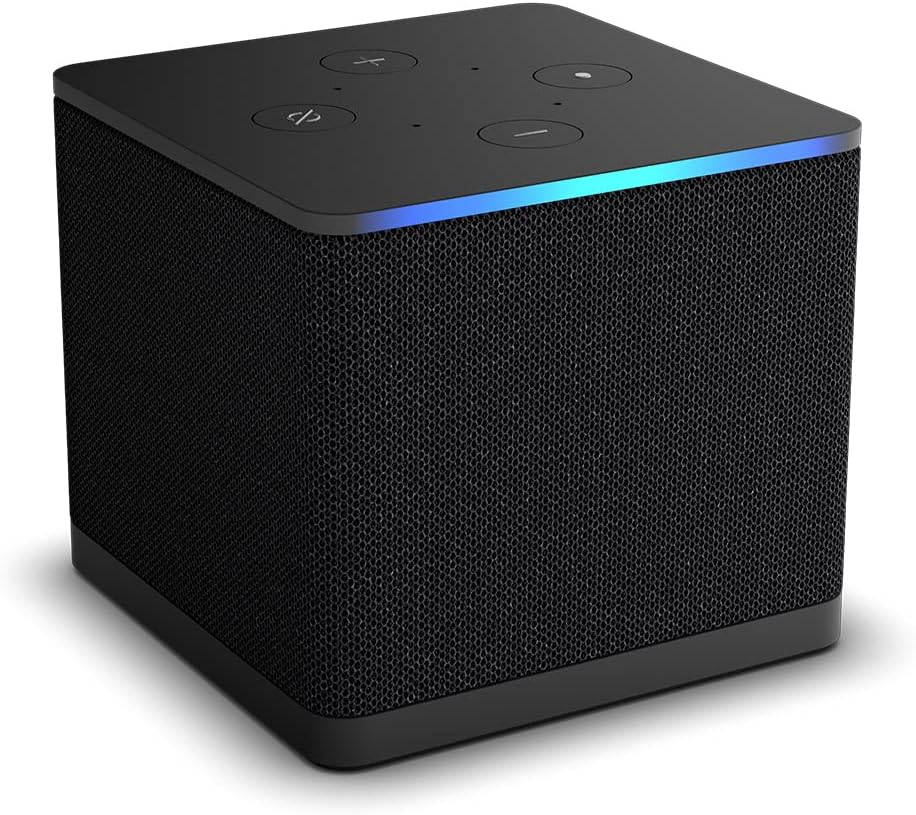
Starlink and Home Entertainment: Elevating Streaming with Amazon Fire TV Cube
As streaming technology continues to evolve, the Amazon Fire TV Cube stands out as the pinnacle of media streaming devices, offering unparalleled speed and connectivity features. When paired with Starlink's cutting-edge satellite internet service, the Fire TV Cube delivers a seamless and immersive streaming experience. This guide dives deep into a full product review of the Fire TV Cube, explains Starlink bandwidth and latency requirements for optimal streaming, walks you through a step-by-step setup combining both systems, covers important compatibility notes, and explains why InstallPros.io is the #1 choice for professional Starlink and smart home installations.
Full Product Review: Amazon Fire TV Cube (What You Need to Know)
Design and Build
The Amazon Fire TV Cube combines a compact, cube-shaped form factor with a premium matte finish that blends easily into a living room AV rack or media console. Built-in microphones and speakers mean the device can act as a hands-free Alexa endpoint for voice control, while the unobtrusive design ensures it doesn’t dominate the aesthetics of a modern living room.
Performance and Processor
The Fire TV Cube is powered by a robust Octa-Core 2.0 GHz processor, delivering noticeably faster app launches and snappier navigation than previous Fire TV devices like the Stick 4K Max. Multitasking and switching between streaming apps, games, and live TV is fluid; users will appreciate the reduced buffering and accelerated UI responsiveness.
Connectivity and Ports
The Cube supports Wi‑Fi 6E for access to the newest, least-crowded wireless band where available, which lowers interference and increases usable bandwidth. For maximum stability, the device also supports a wired Ethernet connection — ideal for high-bandwidth 4K streams and multi-device households. Additionally, the Fire TV Cube is unique among Fire TV devices for including an HDMI input, allowing direct connection to set-top boxes or consoles and centralized control over live TV through Alexa.
AV Capabilities
The Cube supports 4K Ultra HD, Dolby Vision, HDR10+, and Dolby Atmos audio (where content and hardware support it). Super Resolution Upscaling helps make HD content appear sharper on 4K displays. Audio passthrough and HDMI-CEC control make it easy to integrate the Cube into complex home theater setups, but exact feature support can vary depending on your TV and AV receiver.
Voice and Smart Home Integration
Built-in far-field microphones and Alexa voice control are standout features. The Cube can power on TVs, change inputs, open apps, and control compatible smart home devices. This hands-free operation is especially useful for busy households and those already invested in the Alexa ecosystem.
Pros and Cons
- Pros: Powerful performance, Wi‑Fi 6E support, Ethernet option, HDMI-in for set-top control, advanced Alexa integration, excellent 4K and audio support.
- Cons: Higher price than sticks, some advanced AV features depend on TV/receiver compatibility, full benefits require a high-speed, low-latency internet connection.
Starlink: Bandwidth and Latency Requirements for Premium Streaming
Understanding Bandwidth for Streaming
Streaming quality depends primarily on available download bandwidth and stream encoding. Typical streaming recommendations are:
- SD: 3–4 Mbps
- HD (720p/1080p): 5–10 Mbps per stream
- 4K Ultra HD: 15–25+ Mbps per stream (Netflix recommends ~25 Mbps for 4K)
If you plan to stream multiple 4K streams simultaneously, add those requirements together. For example, two concurrent 4K streams ideally require 50 Mbps or more to avoid contention and buffering.
Latency and Real-World Performance
Latency affects live content, cloud gaming, and the responsiveness of voice and control commands. Typical Starlink residential latency ranges from approximately 20 to 50 milliseconds, depending on location, network congestion, and the Starlink plan. This is sufficient for 4K streaming and most interactive applications, though some competitive cloud gaming scenarios may benefit from the lowest possible latency.
Which Starlink Plan Should You Choose?
Starlink residential plans generally provide enough throughput for one or several high-quality 4K streams in a household. For power users, households with many simultaneous streams, remote enterprises, or fleet deployments, Starlink Business or Starlink for RVs/Maritime may be better suited because they offer higher throughput, priority access, or specialized hardware. Pricing and capacities change, so check current Starlink plan details before committing.
Step-by-Step Setup: Integrating Starlink with Amazon Fire TV Cube
Pre-installation Checklist
- Starlink kit (dish, router, cables) installed and online
- Amazon Fire TV Cube with HDMI and power cables
- Compatible 4K TV with available HDMI 2.0/2.1 input
- Optional: Ethernet cable between router and Fire TV Cube for wired stability
Step 1 — Install and Activate Starlink
Mount the Starlink dish per Starlink’s site-specific recommendations for unobstructed sky view. Connect the dish to the Starlink router and complete activation through the Starlink app. Confirm the router broadcasts a stable Wi‑Fi network and note the Wi‑Fi SSID and password. If you prefer a third‑party router for advanced features, place the Starlink router in bridge mode or connect third-party hardware per Starlink instructions.
Step 2 — Place and Connect the Fire TV Cube
Place the Fire TV Cube near your TV with a clear line of sight for voice pickup if you’ll use hands-free Alexa. Connect the Cube to your TV via HDMI and to power. For the most reliable streaming, connect the Cube to your Starlink router using an Ethernet cable. If you must use Wi‑Fi, connect the Cube to your Starlink SSID and prioritize the 5 GHz or 6 GHz band (if available) for best performance.
Step 3 — Initial Fire TV Setup
Power on the TV and select the HDMI input for the Cube. Follow the on-screen prompts to pair the remote, sign in to your Amazon account, choose your Wi‑Fi network (or confirm Ethernet), and install updates. Enable Alexa permissions to allow hands-free voice control if desired.
Step 4 — Optimize Network Settings
- Place the Starlink router centrally or use mesh extenders if coverage is uneven.
- Use Ethernet for the Cube where possible to reduce wireless interference.
- Create a separate SSID for entertainment devices or enable Quality of Service (QoS) prioritization on your router so the Fire TV Cube gets priority bandwidth.
- If you have smart home devices, consider dedicating a second router or VLAN to prevent smart device chatter from impacting streaming.
Step 5 — AV Integration and Fine-Tuning
Enable HDMI-CEC on your TV and AV receiver to let Alexa control power and volume. In Fire TV settings, confirm 4K/Dolby Vision/Dolby Atmos options are enabled and that the Cube is negotiating the correct HDMI capabilities with your TV/receiver. Test multiple streams (4K and HD) to confirm consistent buffering-free playback.
Compatibility Notes and Common Pitfalls
Content and App Limitations
4K and HDR availability depends on both app support and subscription level—Prime Video, Netflix, Disney+, and others may require specific subscription tiers to unlock 4K streams. Availability of Dolby Vision and Dolby Atmos also depends on the content, the app’s encoding, and your TV or receiver capabilities.
Router and Network Compatibility
If you use a third-party router with Starlink, place the Starlink router into bypass/bridge mode if possible to avoid double NAT and simplify port management. Some advanced routers offer better QoS and mesh coverage than the included Starlink router. If you need a static IP or dedicated bandwidth for enterprise uses, consider Starlink Business or ask InstallPros about specialized network configurations.
Voice and Smart Home Integration
Fire TV Cube integrates smoothly with Alexa-compatible smart home devices, but devices on different networks or accounts may not appear. Ensure all devices are on the same network and linked to the same Amazon account for the simplest experience.
VPNs, Firewalls, and Streaming Restrictions
Using a VPN can affect streaming performance and may limit access to some region-restricted 4K content. If you use enterprise firewalls or custom DNS on your Starlink-connected network, confirm streaming services are allowed and not being rate-limited or blocked.
Why Choose InstallPros?
When you want your Starlink and home entertainment system installed correctly the first time, InstallPros.io is the professional partner to trust. We are the #1 Starlink installer in the USA, offering comprehensive services across residential, enterprise, fleet, and remote-site installations. Our certified technicians handle end-to-end deployments—from rooftop dish placement and commercial-grade mounts to advanced networking, wired Ethernet runs, mesh Wi‑Fi design, and Fire TV Cube integration.
InstallPros provides:
- Residential installations with same-week scheduling and optimization for multi-room streaming and smart home control.
- Enterprise and remote-site solutions that include Starlink Business options, static IP, and prioritized connectivity for mission-critical applications.
- Fleet and mobile deployments tailored to RVs, maritime, and over-the-road use cases.
- Advanced AV and smart home integration—we handle HDMI-CEC configuration, AV receiver passthrough, and Alexa automation for a seamless entertainment experience.
Contact InstallPros.io to schedule a consultation or same-week deployment and experience professional Starlink installation and Fire TV Cube integration without the guesswork.
FAQ
Can Starlink reliably stream 4K content to a Fire TV Cube?
Yes. For a single 4K stream, Starlink residential service is typically sufficient, as most 4K streams require around 15–25 Mbps. For multiple simultaneous 4K streams, consider a higher-tier Starlink plan or a business class plan to ensure adequate aggregate bandwidth. Use Ethernet for the most consistent experience.
Do I need to connect the Fire TV Cube via Ethernet for the best performance?
Ethernet is recommended for the most stable 4K streaming, especially in busy Wi‑Fi environments or when the Cube sits far from the router. If Ethernet is not practical, connect to the Starlink Wi‑Fi and prefer the 5 GHz or 6 GHz band (Wi‑Fi 6E) for lower interference and better throughput.
Will the Fire TV Cube control my cable or satellite set-top box?
Yes—the Fire TV Cube includes an HDMI input that allows control of compatible set-top boxes and other HDMI devices through Alexa voice commands. Compatibility depends on the specific set-top model and whether it supports HDMI-CEC and IR control. Some advanced features may require additional configuration.
How many devices can Starlink support on a home network?
Starlink supports many simultaneous devices, but practical performance depends on the plan and the total bandwidth consumed by active streams and devices. For large households with multiple 4K streams, gaming, and heavy downloads, consider network segmentation, QoS, or a higher-capacity Starlink option.
What should I do if my Fire TV Cube buffers or reduces quality while connected to Starlink?
First, test the raw Starlink speed with a speed test on a wired device near the router. If speeds are adequate, switch the Cube to Ethernet if possible, enable QoS to prioritize streaming traffic, reduce concurrent high-bandwidth activity, and ensure firmware on both Starlink and the Fire TV Cube are up to date. If you still experience issues, contact InstallPros.io for a professional network assessment and optimization.